Access in AI Grid is never inherited. An organization role does not open every project inside it, and being on a team grants nothing on its own. Getting a colleague working therefore takes three deliberate steps, and skipping the third is the most common reason someone's first call is refused.
Before you start#
You need Owner or Administrator on the organization, and a project worth granting — see Create an organization, team and project.
1. Invite them#
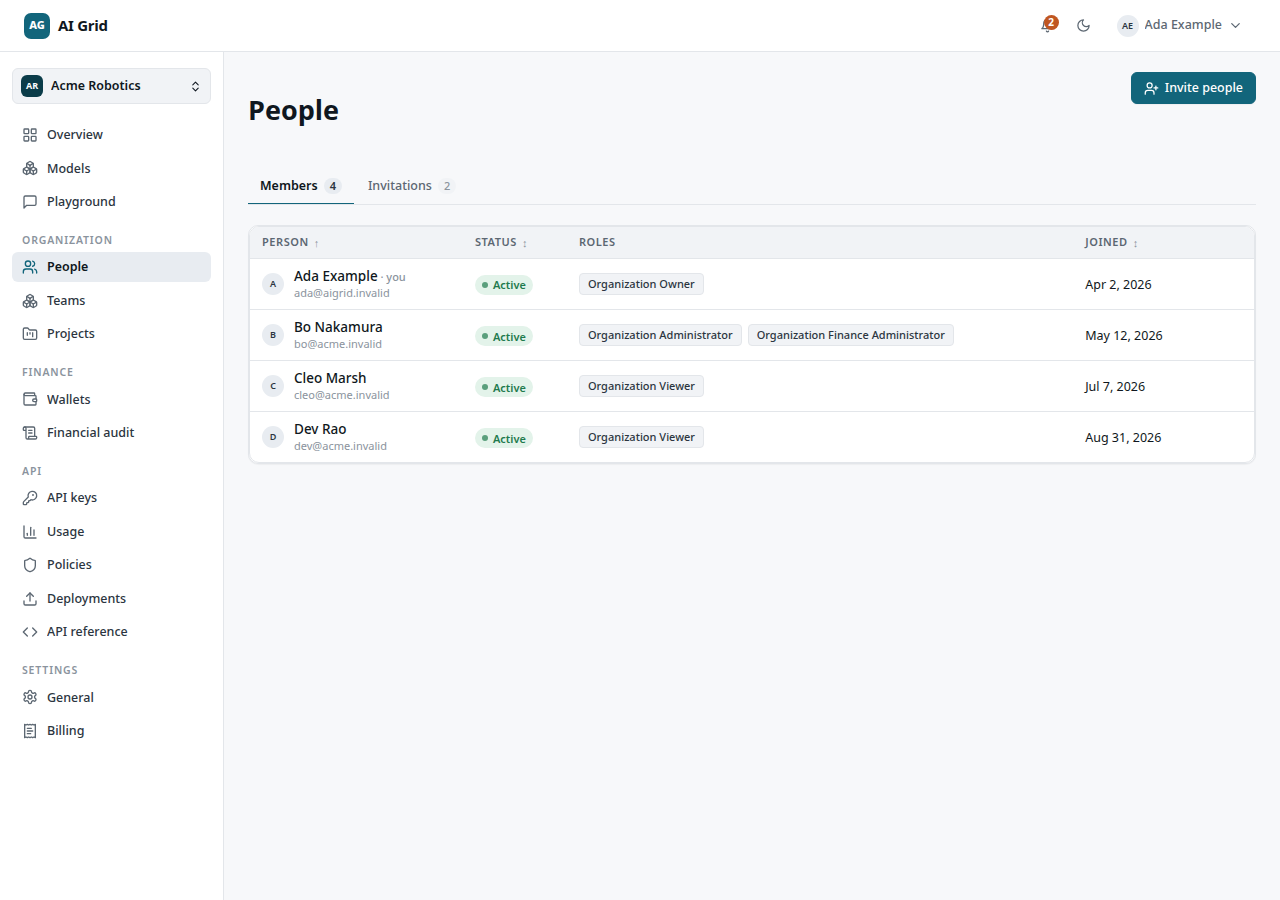
Open People → Invite people. Add a row per person: their email and the organization role they should hold.
Then copy the invitation link and send it yourself, through your own channel. The console does not email it for you — the link appears in the invite results and on the invitation record.
They accept while signed in, and the organization joins their account. One account can belong to any number of organizations and switches between them in the console.
2. Add them to the owning team#
On the team's Members tab, click Add member. They join as Team Member.
This grants no project rights. It matters for a different reason: team membership is one of the three checks that key issuance re-verifies, so without it they cannot create an API key for that project later.
3. Grant the project explicitly#
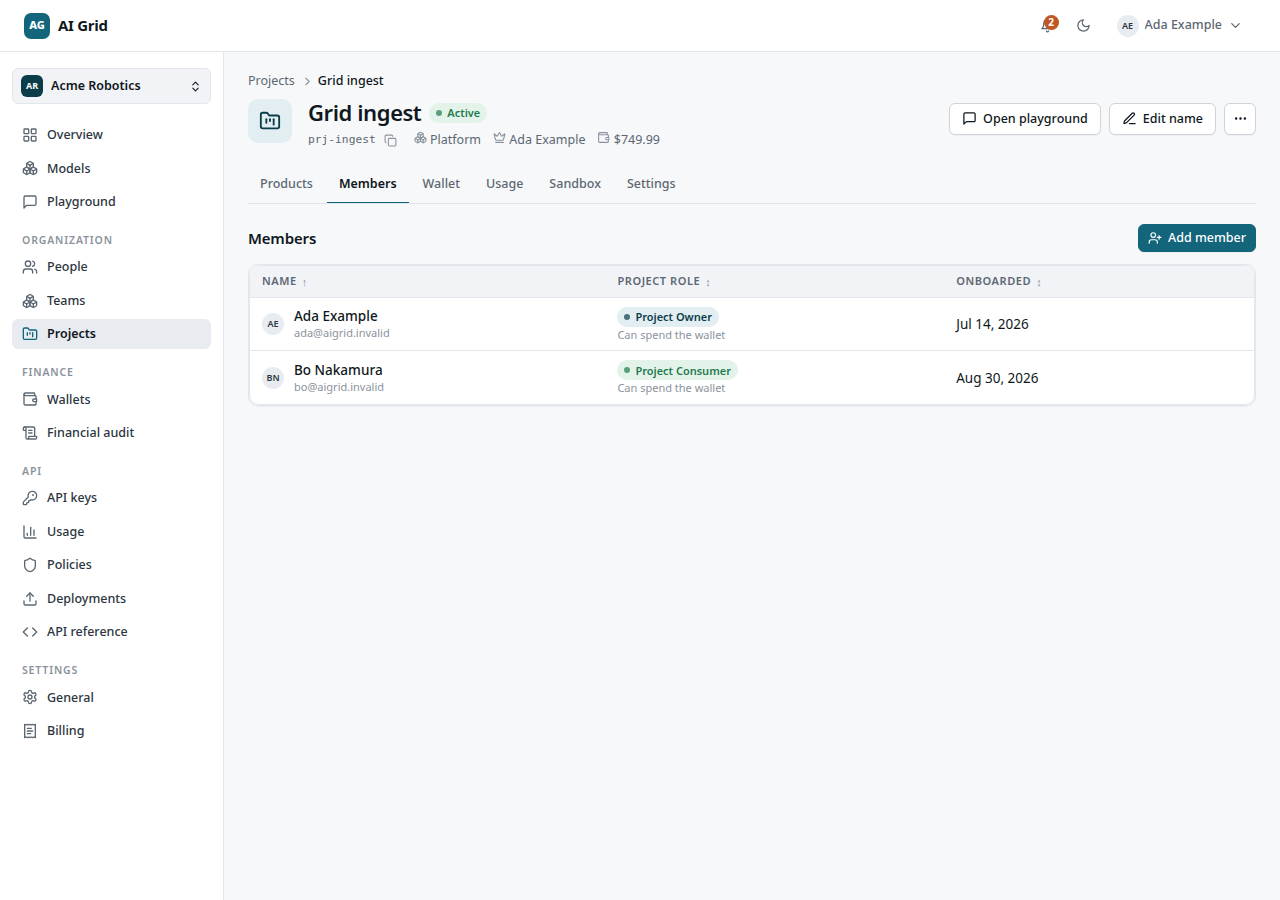
This is the step that actually gives access. On the project's Members tab, click Add member, choose them, and record a reason (at least 3 characters). Give:
- Project Consumer — can call the products assigned to the project, or
- Project Owner — that, plus administering the project.
Each row then shows Can spend the wallet or No consumption right, which is the plain answer to "can this person actually call anything?".
Project Viewer is read-only and carries no right to spend.
4. They issue their own key#
They open API keys → Create key, pick this project, and copy the secret — shown once.
Creating a key requires all three at once: an active organization membership, an active
grant on the owning team, and an active project grant that can invoke. Anything less
answers 403 key_issuer_denied.
Check it worked#
Their first call appears in Usage and call records under their key prefix, and settles against the project wallet. The project's Members tab shows them with Can spend the wallet.
If it did not#
| What you see | What it means |
|---|---|
403 denied |
No project grant. Being on the team is not enough — do step 3 |
403 key_issuer_denied |
One of the three issuance checks failed, most often missing team membership |
403 product_not_assigned |
The project has no such product — see Give a project a model |
| The invitation was never received | Nothing is emailed; you must send the copied link yourself |
Removing a grant refuses that person's next call at once, while their other projects are untouched. Work already admitted still settles, so the audit record stays reconcilable.
Next#
- Try models in the playground — the quickest proof it worked
- People and invitations — member records and invitation management
- Roles and permissions — every role, and what each one carries