The console is the web application you use to run the AI Grid side of your organization: browse the model catalogue, fund project wallets, invite people, and audit every dollar. This manual is task-oriented — each page walks a job with exact navigation paths, button labels and expected results.
Sign in to the console with your organization account. Everything in this manual
lives under the /v2/ application path.
Two kinds of workspace#
- Organization — a company or group space. It has people, teams, projects, shared wallets and a full administration surface.
- Personal workspace — provisioned automatically at your first sign-in, with you as its Owner, a managed team, a managed project and a project wallet. It has no People or Teams pages; the rail shows Workspace → Projects and Sandbox, and the finance pages collapse to a single Wallet.
One login can belong to several organizations. Switch between them from the account menu or My organizations — see Account and workspace.
How the navigation is laid out#
There is one left rail, and it changes with your audience:
- Top (no group label): Overview, Models, Playground — the daily work surface, visible to every member.
- Organization (hidden in a personal workspace): People, Teams, Projects, Sandbox.
- Finance: Wallets (labelled Wallet in a personal workspace) and Financial audit.
- API: API keys, Usage, Policies, Deployments, API reference.
- Settings (only if you can administer the organization): General, Billing.
The account menu at the top-right holds Dashboard, My organizations, My invitations and Profile. Platform administrators have a separate account menu with Admin console and Profile. An organization Administrator role does not grant platform access. The platform-operator surface is outside this manual.
Roles at a glance#
| Level | Roles | What it lets you do |
|---|---|---|
| Organization | Owner | Administers the organization, including Owner-only funding and ownership actions; calling products still requires project access |
| Organization | Administrator | Administers people, teams, projects and settings; Owner-only actions and project consumption have separate gates |
| Organization | Finance Administrator | The funding surface — top-ups and funding requests |
| Organization | Viewer | Read the organization; no mutating actions |
| Team | Team Owner | Owns the team, its members and its projects |
| Team | Team Member | Belongs to the team; no team rights by default |
| Project | Project Owner | Manages the project's products, members and wallet |
| Project | Consumer | Can call the project's assigned products and spend its wallet |
| Project | Viewer | Can watch the project's usage and state |
Project rights are granted explicitly on the project — team membership or ownership alone grants no project rights. Ownership is never handed out by invitation; it is assigned afterwards on the member's record.
The daily surface#
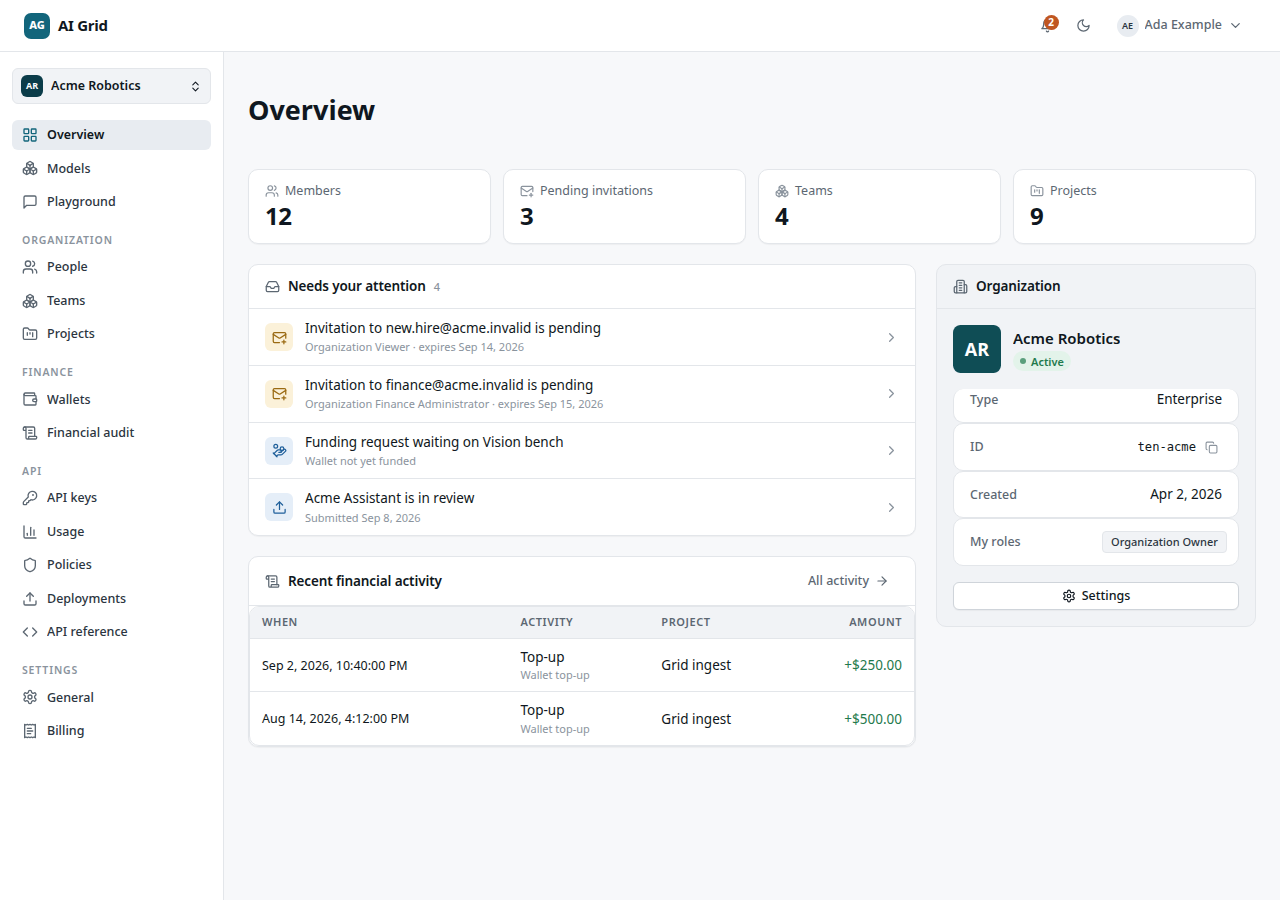
- Overview — stat strip (members, pending invitations, teams, projects), a Needs your attention card, recent financial activity for administrators, and the organization's identity card.
- Models — the browse-only catalogue: search, sort, price and capability facets, and model detail with pricing and call samples.
- Playground — chat with up to four models at once against a paying project.
The remaining pages of this manual cover the structure and administration half of the console: Account and workspace, People and invitations, Teams, Projects, and Wallets and audit.