Money in AI Grid lives on project wallets. The Finance group in the left rail holds the organization-wide view; each project also carries its own Wallet tab (see Projects).
The Wallets page#
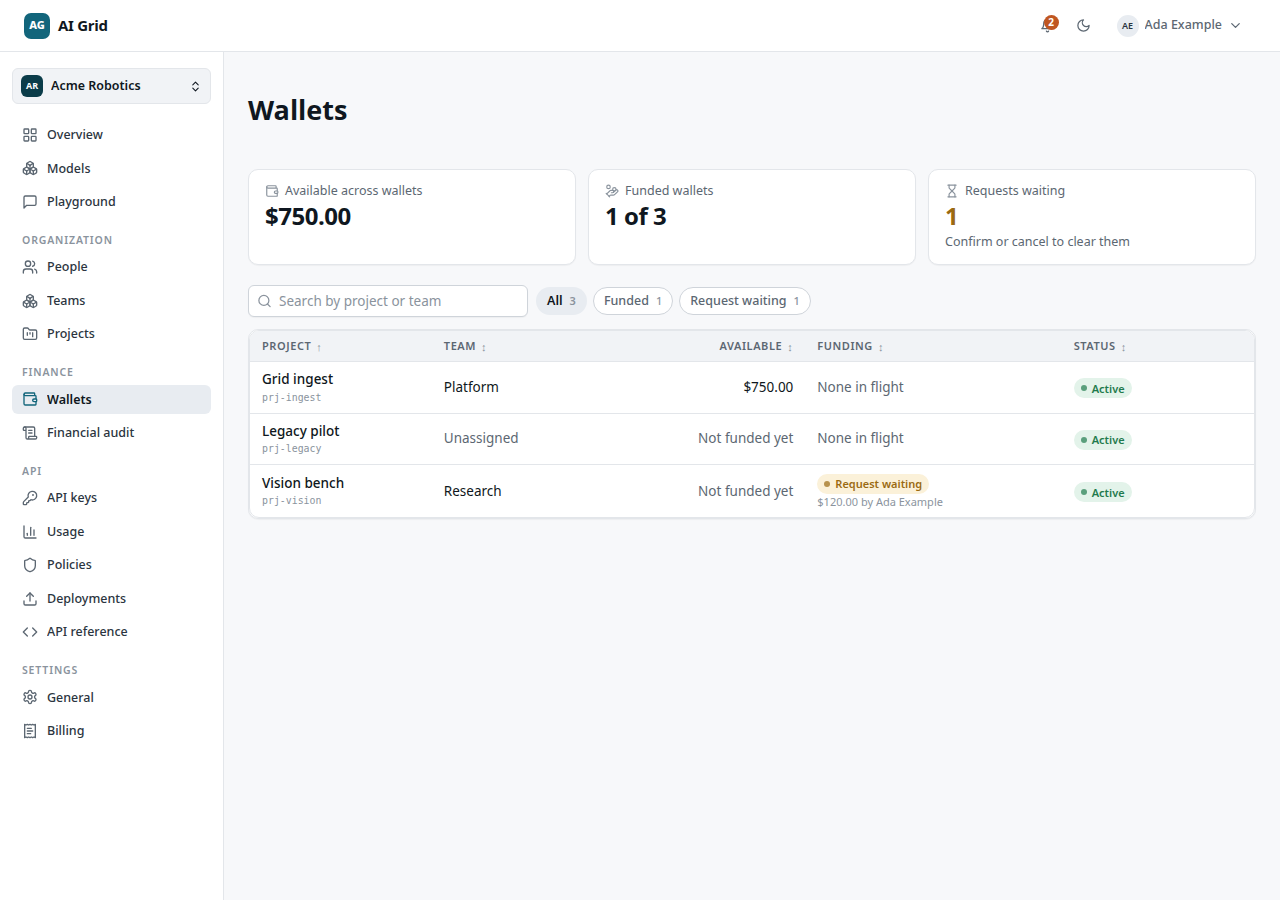
Open Finance → Wallets (labelled Wallet in a personal workspace). The organization view shows:
- Stats: Available across wallets, Funded wallets, Requests waiting.
- Lens chips: All / Funded / Request waiting, plus search.
- Per-wallet row menu, depending on state:
- Add funds — for active wallets with no pending request.
- Review request — for wallets with a pending top-up request; opens a drawer with Cancel request and Confirm and add $X.
- Open wallet — the project's own wallet page.
Add funds#
From Finance → Wallets → Add funds, or a project's Wallet → Add funds. The dialog asks for:
- Amount — within the allowed minimum–maximum range.
- Bill to — a required billing record from Settings → Billing. If the dialog shows No billing record on file, follow Add a billing record before funding the wallet.
- Receipt address — where the receipt is directed.
Click Add $X to confirm. The wallet is credited immediately and the dialog closes. The normal Add funds flow completes the request in this one confirmation. If a pending request already exists, use Review request to confirm or cancel it.
A project wallet#
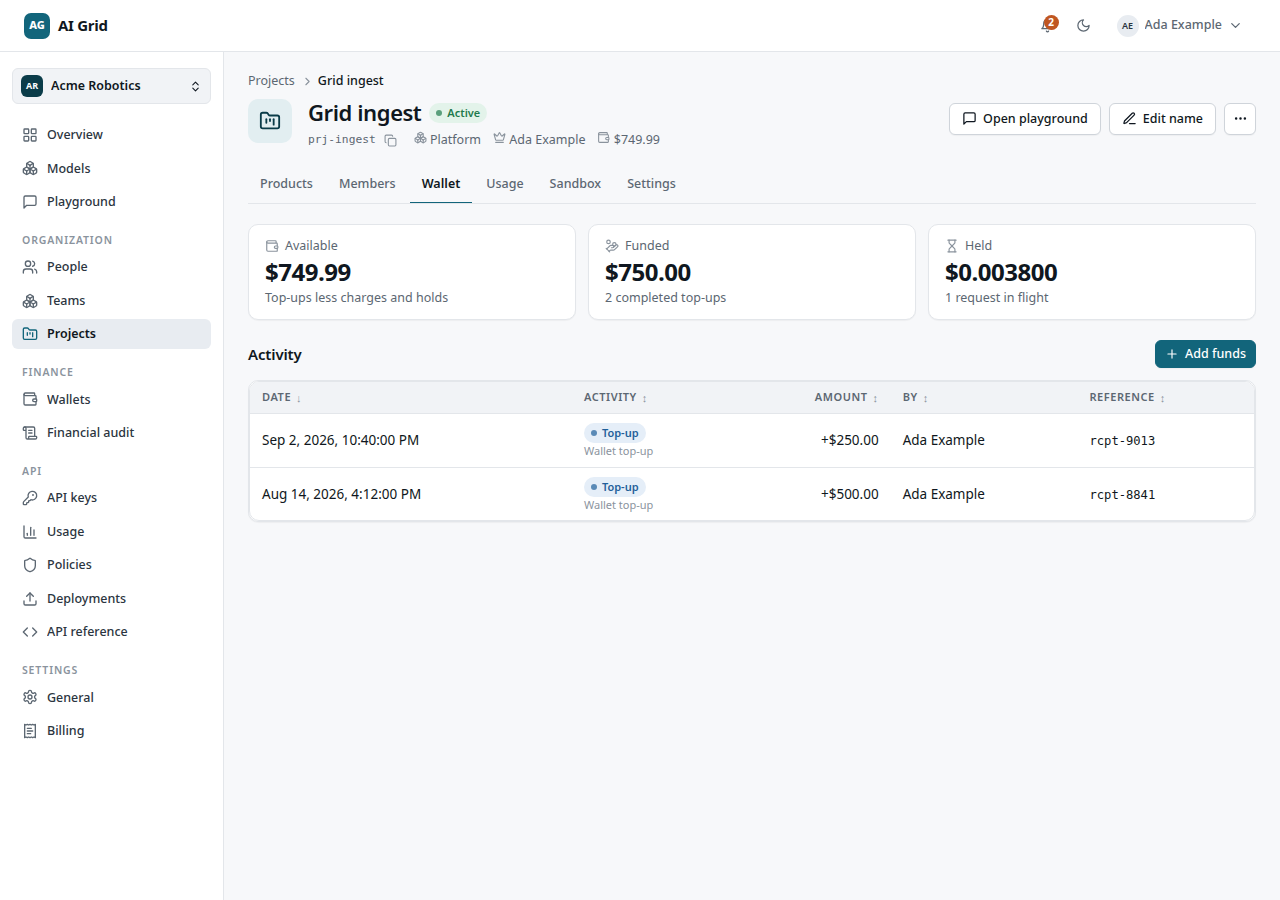
A project's Wallet tab shows Available, Funded and Held balances, the pending top-up banner, and an Activity table (Date, Activity, Amount, By, Reference). Held is budget reserved for in-flight calls — pending reservations show up in usage, not as spend.
An unfunded project answers calls with a budget failure until its first top-up; the project list marks such wallets Never funded.
Financial audit#
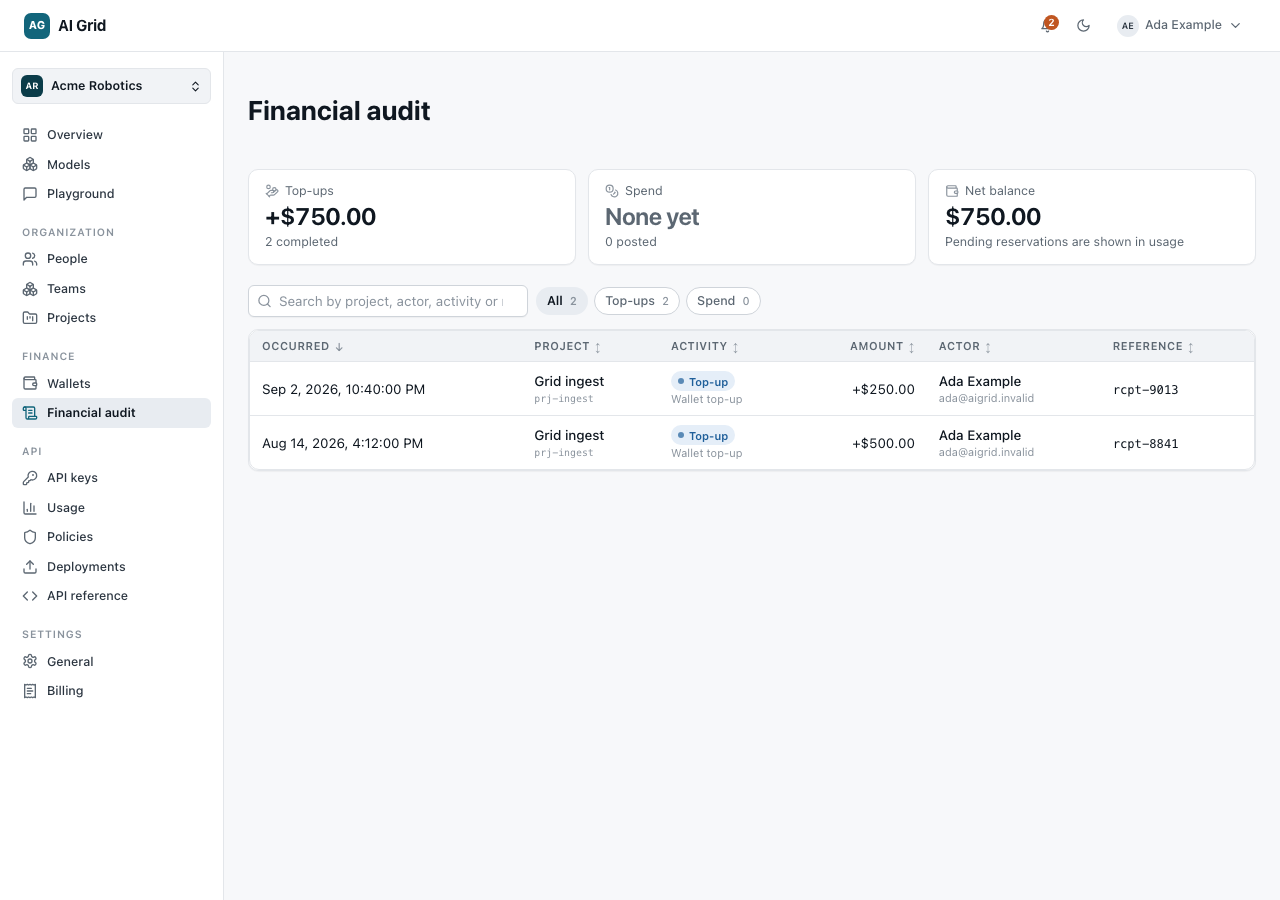
Open Finance → Financial audit. The page requires organization administration — if the server refuses, you get the denied state; check My roles on the Overview identity card to see what you hold.
- Stats: Top-ups, Spend, Net balance. Pending reservations are shown in usage, not in these figures.
- Lens chips All / Top-ups / Spend (the lens is reflected in the page address), plus search.
- Each row opens a read-only drawer: Occurred, Activity, Project, Actor, Reference, Entry and Note.
The audit is a read-only projection of the signed project wallet ledger — it shows what happened and who did it, and nothing here can be edited or deleted.
Where charging shows up#
When a call runs, its cost is reserved before dispatch, charged on completion and any remainder released. The Usage pages show these figures per call — Reserved before dispatch, Charged, Released (or Still held) — together with the recorded reservation, settlement and reconciliation events. Read them alongside the wallet's Held balance to reconcile the ledger to the call log.