Open Organization → Teams. A personal workspace has no teams — the page states A personal workspace has no teams — so everything below applies to a company organization.
The team list#
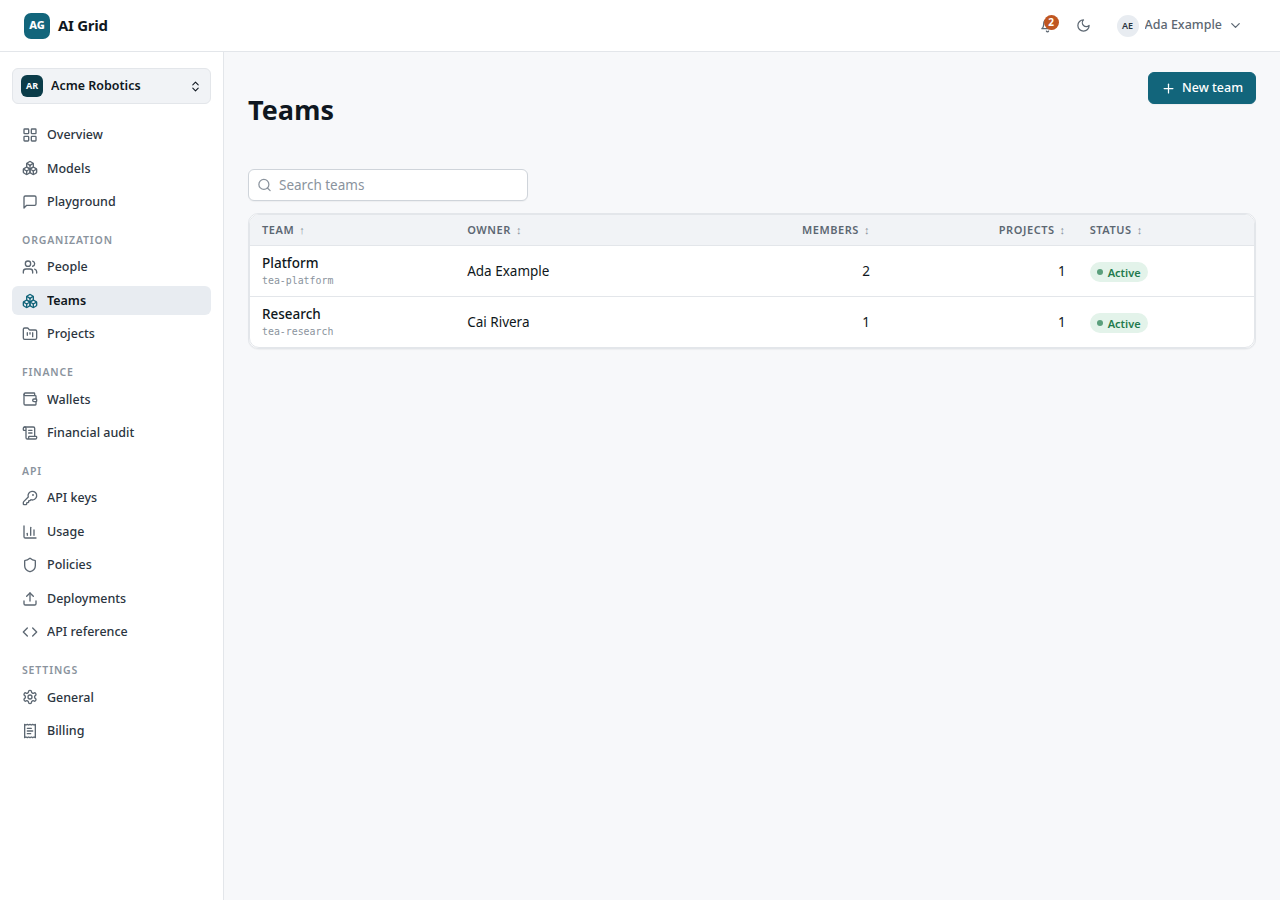
The table shows Team, Owner, Members, Projects and Status, with a search box. Use the header's New team to create one (Owners and Administrators).
Create a team#
Open Organization → Teams → New team, give the team a name and create it. The creating administrator becomes the team's Team Owner.
A team's record#
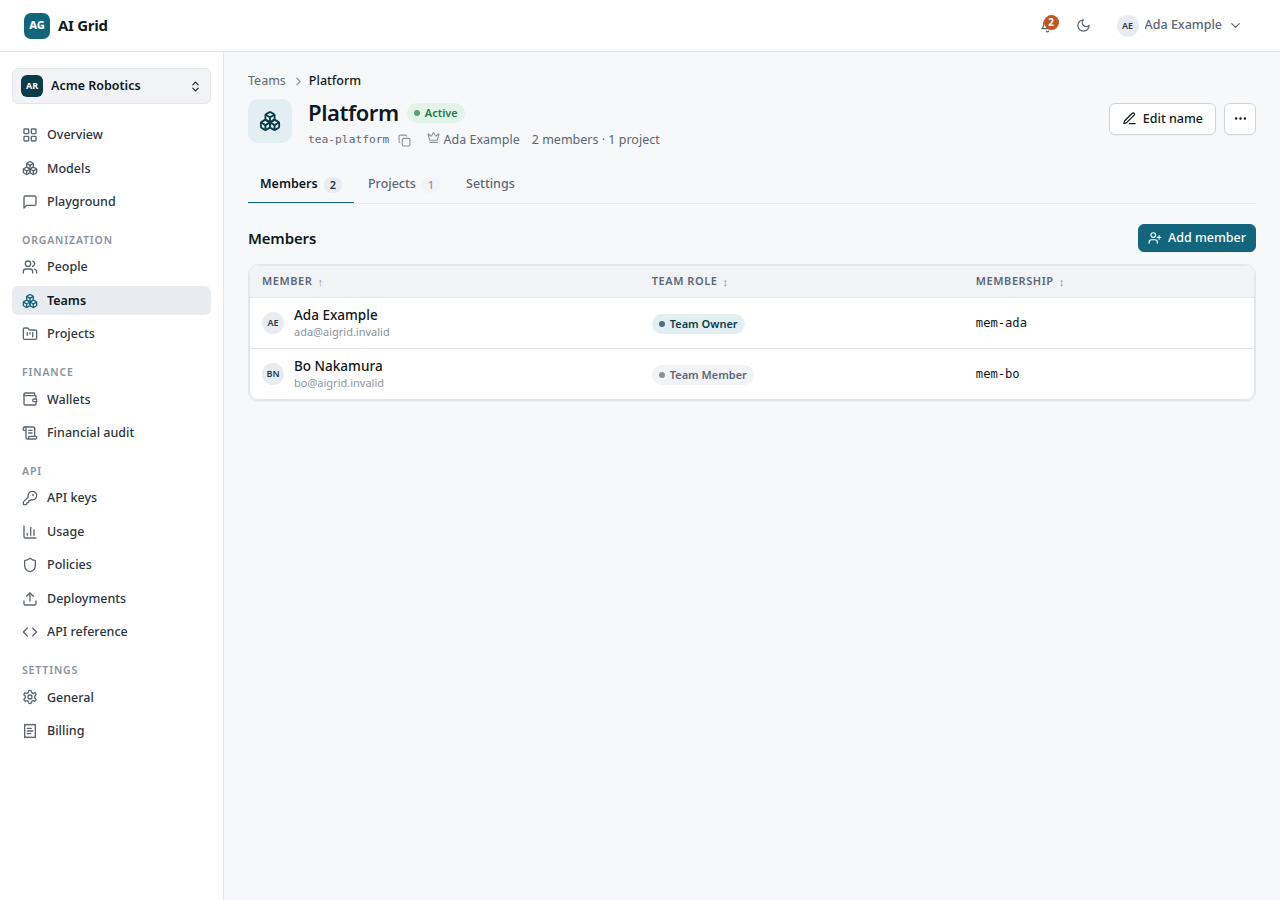
Open Organization → Teams → a team's row. The header shows Edit name (for team managers) and a menu with Remove team (for those who can remove it). Three tabs:
Members#
- Add member opens a drawer with a multi-select of organization members. New members join as Team Member.
- Click a member's row to open the member drawer:
- Team role — switch between Team Member and Team Owner. Promoting a member to Team Owner transfers team ownership to them.
- Move to another team — reassigns the membership.
- Danger zone — Remove from team. A Team Owner must transfer ownership first; the remove action is blocked until someone else owns the team.
Projects#
Lists the team's projects with a New project action. Team owners can create projects here (and from the project list) — see Projects for the creation form and the project record.
Settings#
Rename the team.
Who can do what#
| Action | Team Owner | Team Member | Organization Owner/Administrator |
|---|---|---|---|
| Add members, edit team name | ✓ | — | ✓ |
| Transfer team ownership | ✓ (via promotion) | — | ✓ |
| Remove team | — | — | ✓ |
| Create projects in the team | ✓ | — | ✓ |
| See the team and its lists | ✓ | ✓ | ✓ |